Yves here. News you can use! And advice that helps readers limit their exposure to two longstanding abuses. One is the unending efforts of the surveillance state to extend its reach. Two is the way AI companies steal original work without consent or compensation to feed into training sets.
By Thomas Neuburger. Originally published at God’s Spies
As most have noticed, AI is entering our lives in a very big way.
Doctor’s offices are using AI to replace human scribes, which means whole visits must be recorded and saved. For how long? This can vary or be changed. And AI will soon decide whether you’re too disabled to drive your own car (for that, see here).
The rush toward AI — a rush to prop up the stocks and cut employees — is producing an AI fence between you and all of the corporate entities that run your life. For example, AI now guards the door between you and your next job or loan.
AI has also entered your dealings with the state. Will you be audited this year? AI will decide. How will your Social Security struggles be handled? AI will replace the humans who deal with your needs. And of course, AI policing is already here.
AI is not only “changing what it means to be human,” but for us little folks, us muppets, it’s replacing the human entirely in corporate and government interactions — because money, despite its propensity for massive mistakes.
And that doesn’t begin to discuss AI battlefield murder, a use no one but those in control want to grow.

Gmail and AI
Which leads us to discuss AI’s intrusion into our digital lives. On most computers and websites, AI is ubiquitous. Today, let’s take a look at Gmail and AI.
The latest versions of Gmail, a web-based email client, have AI mail scanning and analysis turned on. If you want AI watching, no problem. Leave it turned on.
If you want to de-AI your Gmail account — to extent you can, at least — these are the steps. I found this thanks to this Twitter account. The thread begins as follows (slight editing mine):
If you have a Gmail account, you need to read this.
Google’s AI now scans your emails and attachments, bank statements, tax files, medical letters, all of it. It turned on by default, and there’s a class-action lawsuit over how. […]
Google automatically turned on AI features in Gmail, Chat, and Meet for many users in late 2025. These features can read your emails, messages, and attachments to create summaries and suggestions.
Google says your emails don’t train Gemini, but some users say they never clearly agreed to these AI features being enabled. Unless you turn them off, the AI can still analyze your inbox to provide these features.
The thread details the steps. As I worked through them, I found differences between his steps and mine, so here are the steps as modified by my own experience.
Change Your Gmail Settings
Change the main Gmail and Google Workspace settings as follows:
- Go to ⚙ Settings → See all settings.
- In your browser’s search bar (Ctrl-F), search for the word “smart” (no quotes).

- Find every mention of “smart” in the settings and turn it off. On my version of Gmail, that includes Grammar, Spelling, Autocorrect, Smart Compose, Smart Compose personalization, and Smart Reply. Your list may differ.
- Make sure Smart Features, a major settings checkbox, is unchecked (see below).
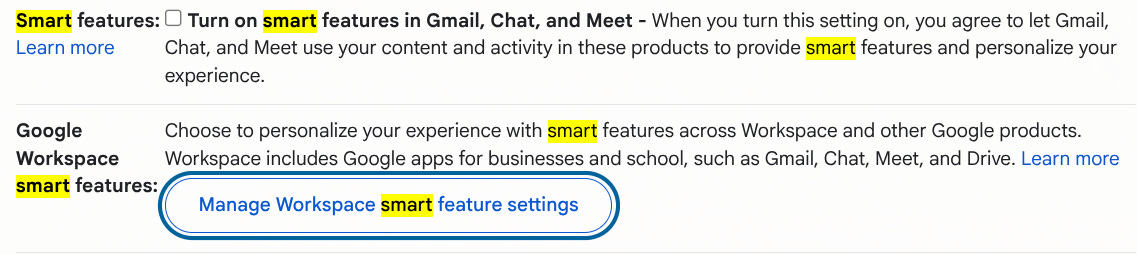
- Go to Google Workspace smart features and click on the Manage Workplace smart features settings button (above).
- On the next screen, toggle everything off and click Save.
- Go the bottom of the main settings page and click Save Changes (important).
Check Your Phone Settings. Delete Your Gemini History.
The writer advises doing the following as well:
Your Phone. The settings don’t always sync between devices, so check the Gmail app separately.
Gmail app → Menu (☰) → Settings → Select your account → Turn off “Smart features and personalization” → Confirm.
And if you’ve used Gemini already:
Delete Gemini History. If you’ve used Gemini before, your chats may be saved, and some could be reviewed by humans.
Go to http://myactivity.google.com/product/gemini → Turn off Gemini Apps Activity → Delete Activity → All Time.
This removes your past Gemini chat history and stops future conversations from being saved.
I had no Gemini history, but that won’t be true for everyone.
Does All This Stop Google From Watching You?
You could say that Google is always watching you. This is their profit model: watching and selling you ads, watching and selling your profile. It’s why they’re so rich.
But it seems, at least for now, that turning smart features off in your Gmail and Google Workspace account means AI is no longer used to power those feature, and indeed is turned off. In addition, as of this writing, Google claims that Gmail smart features is not a backdoor way of training its AI. At least so far.
Will any of this always be true? No, but it seems true for now. If you care, I’d take these steps.


Great info thanx.
Seeing so many updates (and many auto) keep occurring, won’t settings just get reset with these updates?
I’m of a gen where when we were young, we didn’t have updates, the human was complete…. We were “device-less”
What a Mess!!
For some reason I had all the “smart feature” options off already in the “manage” pop-up window, is it a EU thing? I still had to deactivate the main “smart features” option.
Thanks for the information. I’d rather don’t have “be evil” Google spy on me.
Gmail is especially vexing. Even though I don’t use it Google gets most of my email because my correspondents do.
Good point. And I suppose the PE firms that run everything (into the ground) are selling it all for their own purposes.
Another approach might be not to put bank accounts and other sensitive information on Gmail. Then there is all the spybotting on Chromebooks which require a Google account to fully work. If you go online at all these devices will pelt you with constant updates whether you want them or not.
Fortunately my brother gave me a true laptop that can run Linux and not some Google version of Linux. The Chromebook (and they do have their points) is in a drawer.
Glad I was finally nudged into doublechecking my settings. Thought I had the smartness banished but a few more clicks and my Gmail loading time was greatly improved. Also found “Manage Workspace smart feature settings” and when I clicked that I went to a page that was very light on text but the text started about two feet to the left of my monitor and the “save” button was to the right of my screen with just a bit of “cancel” showing so I did.
Mine never showed a save button, but upon going back to the inbox the “turn on smart features” prompt showed up.
I assume that it’s off.
Well, I do not have a Google Account. : D
6 years ago I switched to a Huawei phone, the only good thing Trump did.
Yes, you can buy and use them in the US (but not on Verizon, it has to be a GSM service), Ebay is a good source. No google whatsoever as Huawei has their own app store and services, most major apps are available there. Convenience apps like gas stations, etc you can add via APK sites.
4 years ago I deleted all of my Gmail accounts and connections along with LinkedIn.
Last year I switched all of my personal computers to Linux.
There’s definitely a learning curve to all of it but totally worth it for me.
Is a Faraday bag my next step?
I finally just moved to Proton Mail. Previous steps to disable these features in Google were said to disable spell check as well, maybe this approach is uneffected by that or those reports were erroneous. Regardless, I loathed Google telling me how I can rewrite my emails into slop. I like my run-on sentences and occasional improper use of grammar.
Proton has really cleaned up their service and is a great option. I tried them probably around 2017 or so and found their logon processes a bit too much like 2 and 3 tier verification steps, etc. It got really frustrating if you forgot your password.
Thanks, useful!
I pay for secure E-mail. It costs 11 bucks a month. I got three addresses. Two I never give out online and get maybe one spam a week on each of them. Once I had one set up so if you weren’t on the list, it would notify you of that and you wouldn’t get in.
I imagine some service will use AI to filter out all spam.
NEWS WE CAN USE!!!
Thank you so much!
Anything to reduce these companies’ market power. Even a little is a swell activity.